
Contact Us
Send your Feedback, Questions and Support requests here
We'll get back to you in minutes, if not asleep
3-minute intro
How Insomniac actually works
A small menu-bar app that keeps your Mac awake, when it should be — and lets it sleep when it shouldn't. No babysitting. Built for the way you actually work — fully customisable, automatable and out of your way.
3 ways to keep your Mac awake
Everything Insomniac does fits inside one of three boxes. From a quick tap to a workflow that runs itself.
- Quick sessionsOne tap from the menu bar: 15 min, 1 h, 2 h, or until a time. Timer expires, normal OS sleep returns.
- Smart rulesConditions that engage sessions. Combine signals with AND OR NOT. While true, the Mac stays awake.
- ProfilesBundles of rules with a name and a toggle. Turn one on, it watches your workflow indefinitely.
Quick sessions and profiles run in parallel — turning one on never cancels the other. 7 built-in profiles ship for the common scenarios.
You can customise, create your own, enable/disable quick access via menu bar dropdown.
Export profiles, share with friends or add them to Insomniac public library for other users to see. (coming up in the next update - 1.0.1)
You can customise, create your own, enable/disable quick access via menu bar dropdown.
Export profiles, share with friends or add them to Insomniac public library for other users to see. (coming up in the next update - 1.0.1)
Triggers — signal Insomniac can watch
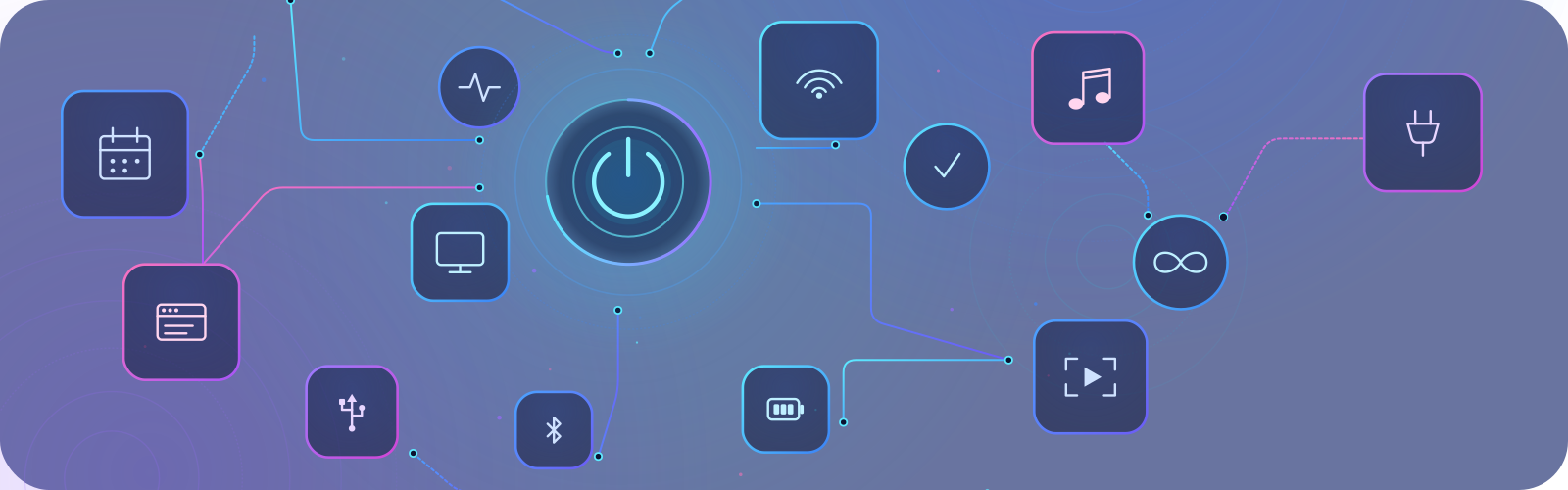
30+ signals across seven categories built-in for real world use cases. Mix and match.
External display
Sustained CPU
Downloading
Audio playing
Calendar event
Fullscreen video
Battery & thermal
Power source
App behaviours
Network awareness
Bluetooth & USB
Most triggers expose their thresholds directly: network throughput in KB/s, sustained CPU/GPU windows, battery levels, debounce delays . Defaults are tuned for everyday laptop use; tighten or loosen any of them under Settings → Triggers or Settings → Profiles→ rule editor screen
Smart overrides — the safety net
These modifiers run alongside your rules and pause profiles when conditions change. Low battery? Pause. Mac throttling under heat? Pause. In a meeting? Pause or hold the Mac awake — your choice. Insomniac never works against you.
-
 Battery-awarePause profile when the battery drops below a threshold. Default 20 %.
 -
 Thermal-awarePause while macOS reports heavy thermal pressure. Don't fight the cooling.
 -
 Calendar-awareHonor Do Not Disturb and named events. Pause or hold awake — your call, per event.
 -
 Schedule-awareRestrict any profile to a time-of-day window — backups after 10 PM, work hours only, etc.
Each is configurable under Settings → Smart: battery and thermal thresholds, which calendar event names trigger pause vs. hold awake, and which time-of-day window applies.
Get 7-day trial now